Every few years a new tool promises to finally replace the terminal. A slicker GUI, a friendlier abstraction, a dashboard that turns commands into buttons. And for a while, it works. Then a project grows, an edge case shows up, or a server needs debugging over SSH — and the terminal is exactly where everyone ends up again.
Why the terminal keeps winning
The terminal doesn’t get faster with hype cycles, but it also doesn’t get slower. Commands you learned a decade ago still work today. A script written for one project can automate the next one with a few edits. That kind of compounding value is rare in software.
Learning your shell’s history search (Ctrl+R) alone can save more time than most GUI shortcuts combined.
Muscle memory is part of it too. Once grep, git, ssh, and a handful of flags are wired into your fingers, switching to a mouse-driven equivalent feels like a step backwards — one more click, one more window, one more context switch.
The command line isn’t a relic of the past. It’s the one interface that never asked to be redesigned.
Setting up a workspace worth keeping
A good terminal setup is less about the emulator and more about the habits around it: a shell config you actually understand, aliases for the commands you repeat daily, and a prompt that tells you what you need without shouting.
 A minimal tiling layout keeps logs, editor, and shell visible at the same time
Some habits worth adopting early:
- Keep dotfiles in version control, not scattered across machines
- Alias the commands you type more than five times a day
- Prefer composable tools (
grep,sed,awk) over one-off scripts - Learn one multiplexer (
tmuxorscreen) so sessions survive disconnects
A rough progression most developers go through:
- Copy commands from tutorials without fully understanding them
- Start reading
manpages instead of guessing flags - Write small scripts to avoid repeating multi-step commands
- Build a personal toolkit of aliases and functions
- Reach for the terminal first, GUI second
None of this requires memorizing hundreds of flags. A dozen commands, used well, cover most daily work.
A quick look at the setup
Here’s a small snippet from a .zshrc that wires up a faster prompt and a couple of aliases:
autoload -Uz vcs_info
precmd() { vcs_info }
setopt PROMPT_SUBST
PROMPT='%F{cyan}%~%f ${vcs_info_msg_0_} %# '

alias gs="git status"
alias gc="git commit"
alias ll="ls -lah"
Be careful with aliases that shadow built-in commands — alias cp="cp -i" is safe, overriding cd rarely is.
Terminal multiplexers, editors, and shells all come with trade-offs worth comparing before committing to one for years:
| Tool | Good for | Learning curve |
|---|---|---|
| tmux | Persistent sessions, pane layouts | Medium |
| Vim / Neovim | Fast editing, remote-friendly | High |
| Zsh + Oh My Zsh | Sane defaults, plugins | Low |
| Fish | Autosuggestions out of the box | Low |
The parts people forget to show
Screenshots of terminals always look clean, but the real day-to-day setup includes plenty of clutter: half-finished scripts, test servers running in the background, logs streaming past faster than anyone actually reads them.
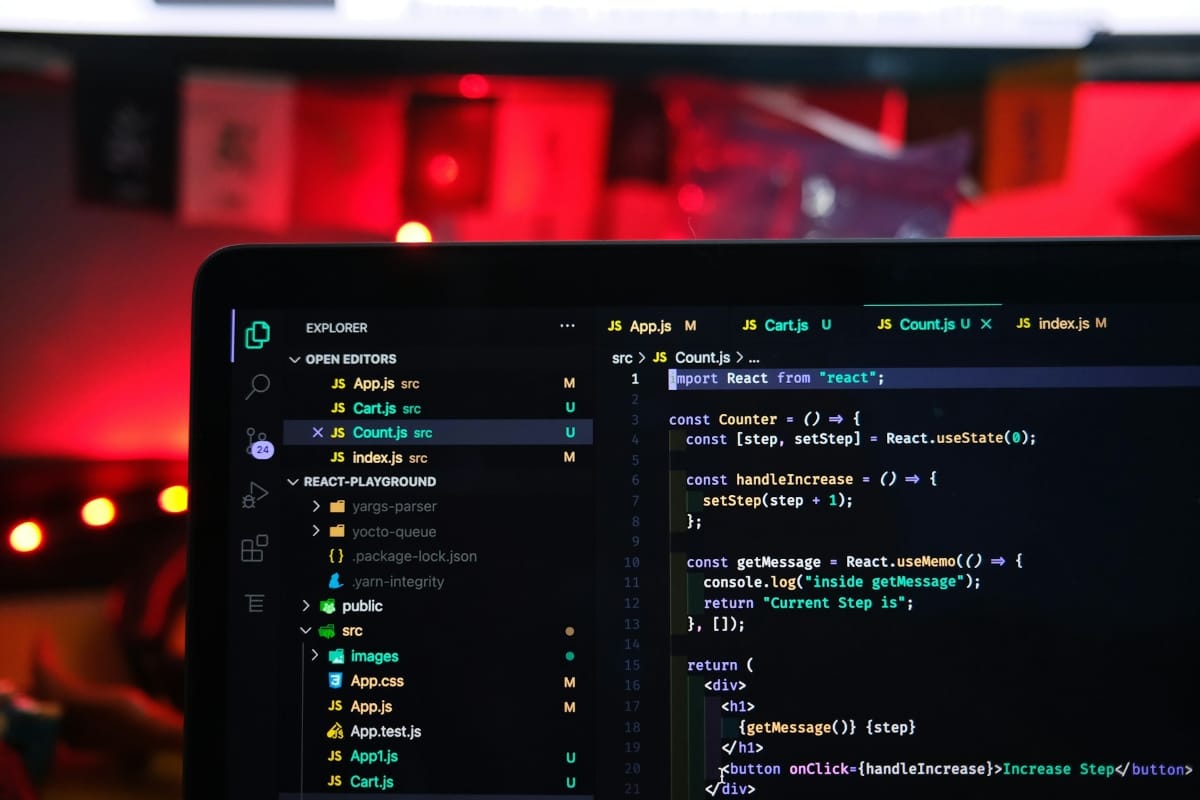
Gallery
Don’t mistake a minimal setup for a fragile one — back up your dotfiles before switching machines.
Why it sticks around
Every generation of developers rediscovers the same thing: GUIs change every few years, but a well-chosen set of terminal habits keeps paying off long after the tool that inspired them is gone1. That’s not nostalgia — it’s just a good return on the time invested in learning it.
Treat this as a starting point, not a rulebook. The best terminal setup is the one you’ll actually keep using.
Pick one habit from this list, use it for a week, and see if the terminal earns its place back on your desktop2.



Start the conversation